
The Issued Cards tab under Products › Gift Cards lists every gift card your store has sold or sent, including store credit. Three filters and a search box narrow the list, and Export downloads it as a spreadsheet file (CSV): every card, or exactly the cards you see. Use the file to see what you still owe on gift cards, match cards to the customers who hold them, and follow up on cards nobody has used.
In This Article
- Before You Start
- Open Issued Cards
- Filter and Search
- Export the Cards
- When Your File Is Ready
- What’s in the File
- Common Questions
Before You Start
Store admins and team members in the Product Manager or Customer Support role can see Issued Cards and export. Other roles don’t see Gift Cards in the menu. A store admin sets each team member’s role under Account › Team.
Exporting only reads your cards. Nothing about a card changes, and you can export as often as you like.
Open Issued Cards
- In your seller portal, click Products, then Gift Cards.
- Click the Issued Cards tab. Every card your store has sold or sent is listed, 25 to a page, oldest first. The count line says how many cards match, across every page.
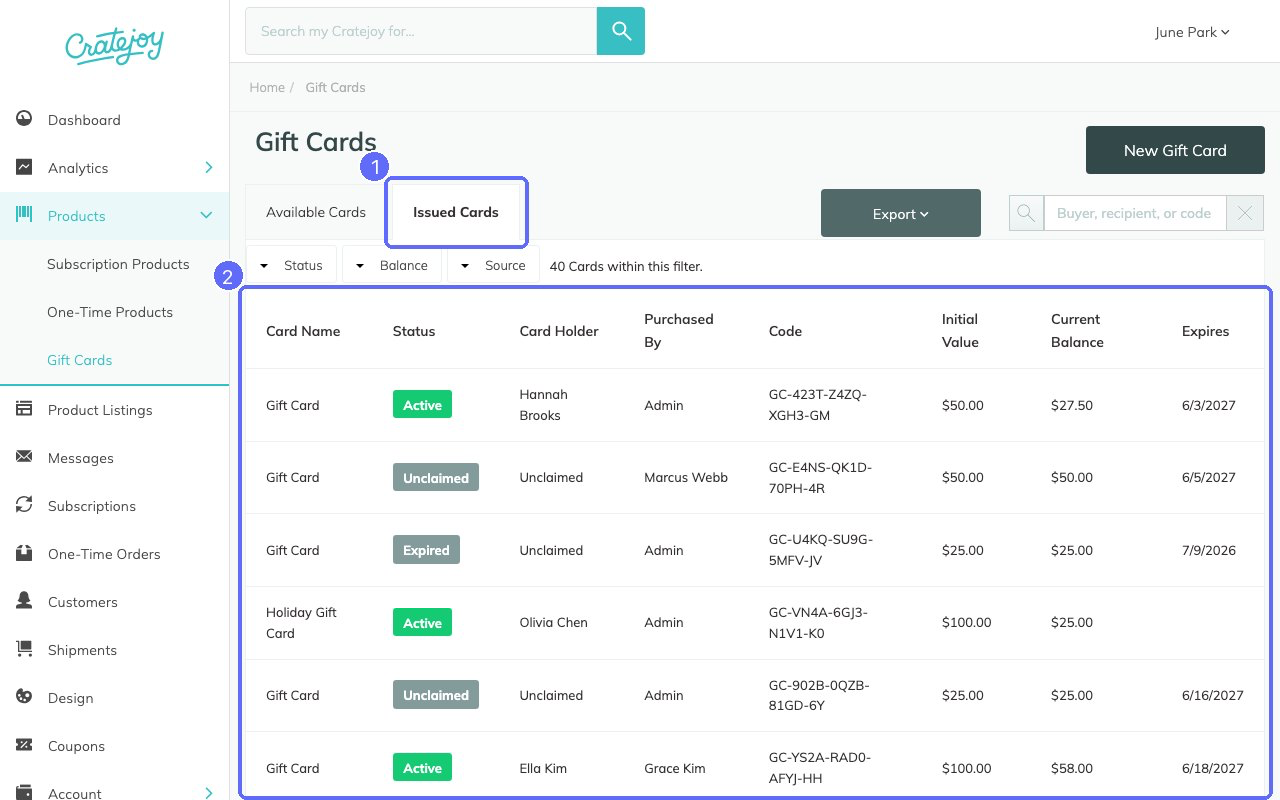
Each row shows the card’s name, status, holder, buyer, code, initial value, current balance, and expiry date. Click a row to open that card’s own page.
Filter and Search
Click Status, Balance, or Source and pick one choice. The button turns into your choice with an × that clears it. Set more than one filter and the list shows the cards that match all of them.
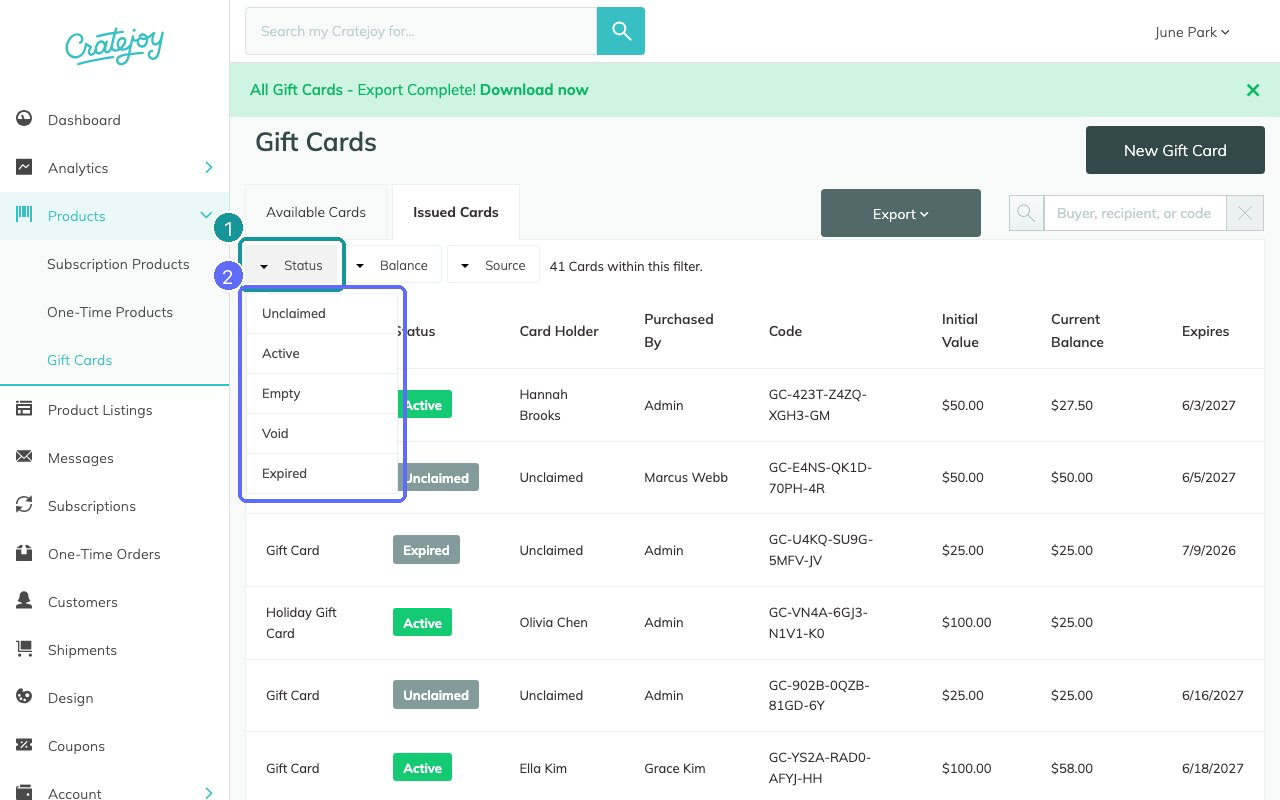
| Filter | Choices |
|---|---|
| Status | Unclaimed: nobody has used the card yet. Active: the card is tied to a customer’s account and pays their orders and renewals until it runs out. A card spent down to $0.00 usually stays Active. Empty: used up. Void: disabled by your store. Expired: nobody claimed it before its expiry date. |
| Balance | Has usable balance: an Unclaimed or Active card with money left. No usable balance: every other card. |
| Source | Purchased: a customer bought it. Sent by store: you sent it, for example as store credit, a replacement, or a giveaway. The list shows these as Purchased By “Admin”. |
The search box finds cards by a customer’s name or email (whoever bought or holds the card), the email the card was sent to, the card’s name, part of its code, the gift message, or a card’s ID. Press Enter to search. Search and filters work together.
Export the Cards
- Set any filters or search you want. Press Enter if you typed a search, so the list and the file agree.
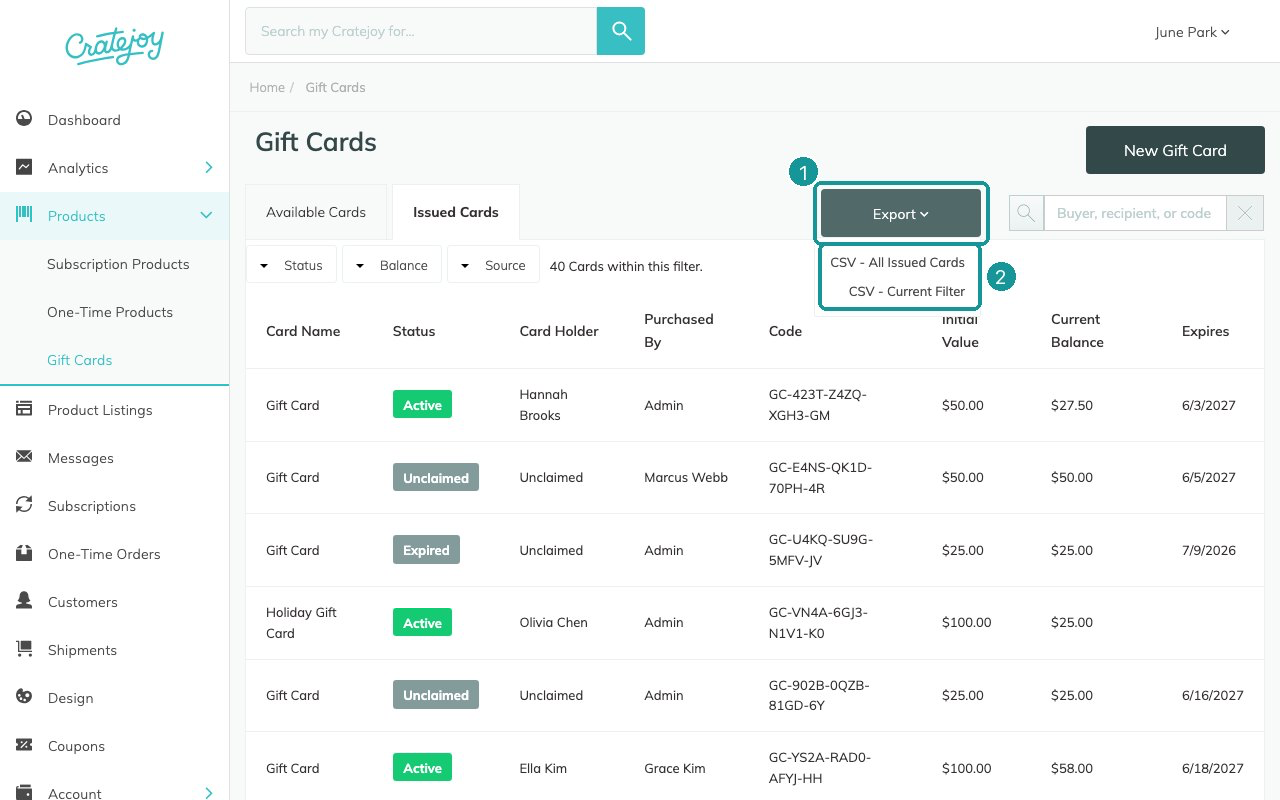
- Click Export, then CSV - Current Filter for exactly the cards the list shows, on every page, or CSV - All Issued Cards for every card, whatever the list shows.
When Your File Is Ready
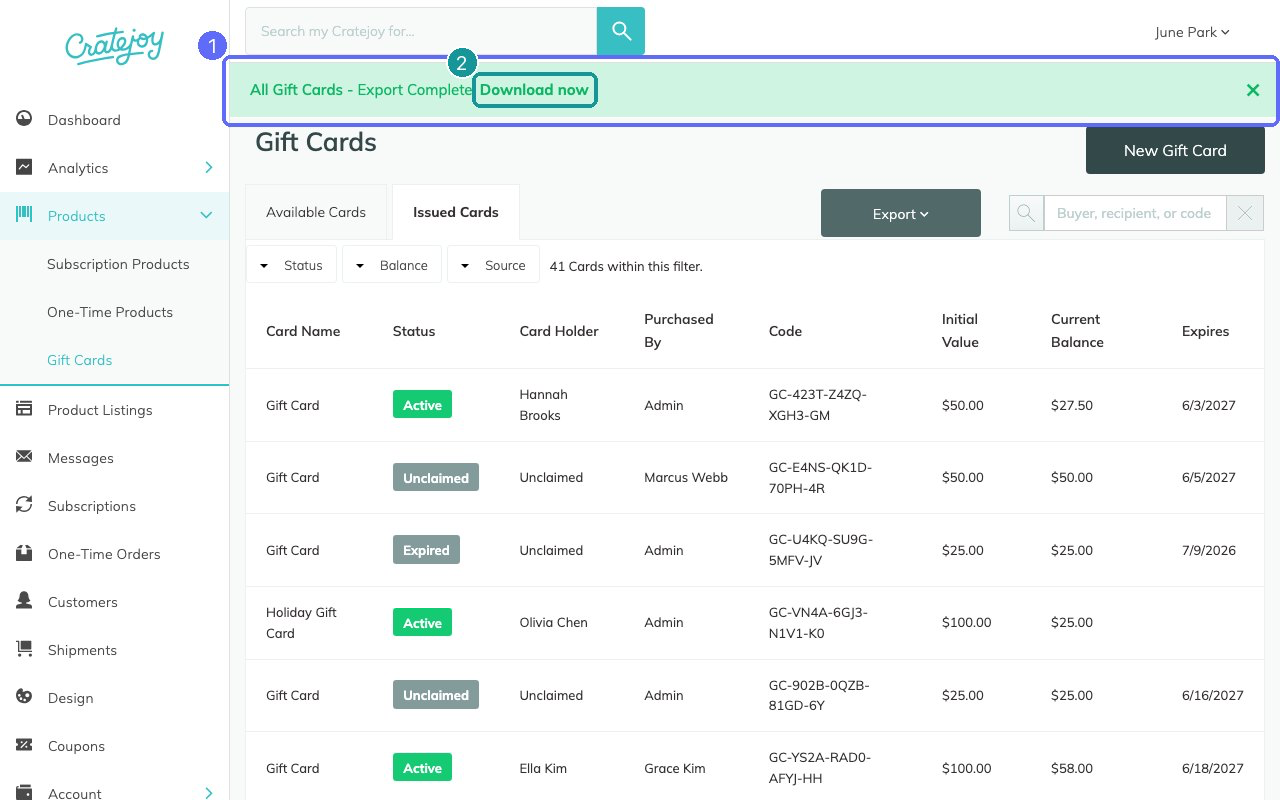
We make the file in the background, so you can keep working. A banner at the top of the page shows that it’s in progress. When the file is ready:
- The banner changes to “All Gift Cards - Export Complete! Download now” (or “Filtered Gift Cards”). Click Download now.
- We email a link to whoever clicked Export, from Cratejoy Admin (notifications@cratejoy.com) with the subject “Gift Cards export is complete!”. The link works when you’re logged in to your seller portal.
If you click Export again with the same choice while the file is being made, the banner reads “This export is already in progress.” You still get one file.
What’s in the File
One row per card, newest first, with 22 columns. Money is in your store’s currency, and dates are your store’s own date, written YYYY-MM-DD. The file never holds a card’s full code or its gift message.
| Columns | What they show |
|---|---|
| Card ID, Card Name, Code Ending, Status | The card: its ID, the gift-card product it came from, the last four characters of its code, and its status. |
| Initial Value, Balance, Usable Balance | What it was worth when issued, what’s stored on it today, and what it can still pay. Usable Balance equals Balance for Unclaimed and Active cards, and $0.00 for Empty, Void, and Expired cards. Adding up Usable Balance gives what your store still owes on gift cards. |
| Created Date, Expiry Date | When it was made, and when it expires. Expiry Date is blank when the card never expires. |
| Source, Order ID | Purchased or Sent by store, and the order that bought it. Order ID is blank for cards you sent. |
| Buyer Customer ID, Buyer Name, Buyer Email | The customer who bought it. Blank for cards you sent. |
| Sent To | The email you sent it to. Blank on bought cards, which go to the buyer to pass on. |
| Claimed By Customer ID, Claimed By Name, Claimed By Email, Claimed Date | The customer account it’s tied to, from its first checkout, and when. |
| Last Used Date, Times Used | When it last paid toward an order, and how many times it has. |
| Note | Your store’s own note on the card. |
Common Questions
Why does a spent card still say Active?
A card claimed by a customer stays Active even at $0.00, and keeps working past its expiry date. Its Usable Balance in the file is what it can still pay.
Why does a Void or Expired card show a balance?
The list and the file show the balance stored on the card. A Void or Expired card can’t use it, so its Usable Balance is $0.00.
Why don’t I see Gift Cards in my menu?
Gift Cards is available to store admins, Product Managers, and Customer Support members. Ask your store admin to change your role under Account › Team.
Related Articles
Questions? Contact support.


